
See which cars pay for themselves
Fleet and payments reports are calculated automatically from the reservations, handover reports, services, costs and payments you already keep in Renthelp. You see the utilization, revenue, costs and profit of every car without retyping data into Excel.
14 days free, no credit card required

The questions reports answer
Which cars earn money and which just sit idle?
A vehicle ranking by profit and utilization, with each car's idle days
How much does this car really cost me?
Services, leasing, insurance, tires and fuel in a single vehicle result
What is my average daily rate?
Average daily rate and revenue for every day a car is in the fleet
How much cash did each employee take?
Payments by the person who took them, with cash totaled separately
Was this month better than the last one?
Payments, refunds and net compared with the previous period of the same length
How much do I earn on extras?
Extras sold and discounts given, separately for every car
Utilization and profit of every vehicle
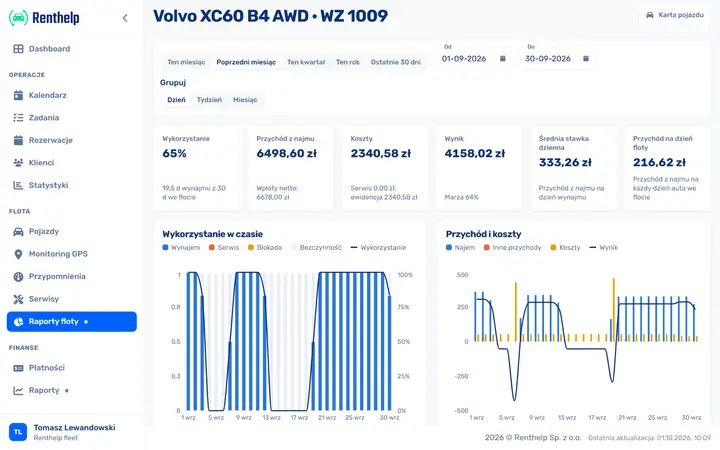
The fleet report shows how many days each car was rented, in service, blocked or sitting without a customer. Next to that are revenue, costs, profit and margin, for the whole fleet and for a single car.
Utilization over time
A day-by-day chart: how many cars were rented, in service, blocked and free
Vehicle ranking
Sort cars by profit, utilization, mileage or number of rentals
Single-car report
Revenue by type, costs by category, extras and reservation sources
Mileage and damage
Kilometers from handover reports, damage per 1,000 km and overdue reminders
Vehicle ranking in four views
Below the chart, every car has its own row. You pick the set of columns above the table, sort by any column, and clicking a vehicle opens its report for the same period.
| View | Default sorting | Columns |
|---|---|---|
| Profitability | Profit | Rental, other revenue, costs, profit, margin |
| Utilization | Utilization | Utilization, rental, service, blocked and idle days, average gap between rentals |
| Operations | Mileage | Mileage, returned rentals, kilometers per day, damage, damage per 1,000 km, services, overdue reminders |
| Sales | Number of rentals | Rentals, average rental length, booking lead time, cancellation rate, extras, discounts |
A ledger of vehicle costs
Renthelp knows about services, but not about leasing, an insurance policy or a set of tires. You record such expenses in the Costs tab on the vehicle page, and the fleet report adds them to the car's result.
Nine categories
Purchase, leasing or installment, liability insurance, comprehensive insurance, fuel, tires, washing, technical inspection and other
Spread over a period
Spread an insurance policy over a year and the purchase price over the years the car is in use, up to 10 years. The report for a given month takes only that month's share
Services without retyping
The cost of a completed service lands in the report automatically, on the day the service is completed
How much came in and who took it
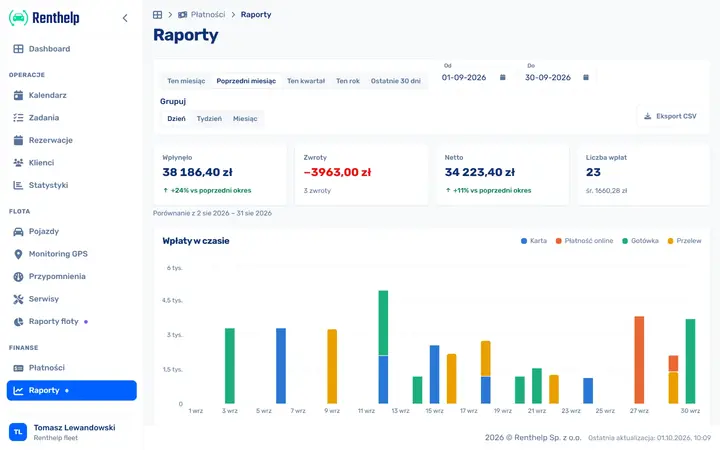
The payments report shows how much money came in during the selected period, how much went back to customers and how much was left net, compared with the previous period of the same length. Amounts are broken down by payment method, charge type and the person who took the payment.
Received, refunds, net
Number and average of payments, and the change versus the previous period
Method and gateway
Cash, card, bank transfer and online payment, broken down by gateway provider
Who took the payment
Each employee's total payments, with cash totaled separately for cash-drawer reconciliation
Deposits kept separate
Collected, returned and the difference in the period. Deposits are not counted as payments
Period, currency and export
Both reports work the same way: you choose the period, grouping and currency, and download the result as a CSV file.
Preset periods
This month, last month, this quarter, this year, the last 30 days or a custom date range
Day, week, month
Chart and breakdown by day for up to 3 months, by week for up to 2 years, by month for up to 3 years
Period in progress
A period that is still running is counted up to today, so a car's revenue and costs cover the same days
CSV export
One row per vehicle in the fleet report, one row per payment in the payments report. Totals in the file match the screen
Multiple currencies
Each currency is calculated separately, with no exchange-rate conversion
Retired cars
The report covers every car that was in the fleet at any point in the selected period
Frequently asked questions
Do I have to enter data into the reports manually?
No. Reports are calculated from what is already in Renthelp: reservations, handover and return reports, services, damage, charges and payments. You only add by hand the costs the system doesn't know about, such as leasing, insurance or tires. You enter them in the Costs tab on the vehicle page.
How is revenue calculated when a rental runs into the next month?
The rental price is spread evenly over the whole duration of the reservation. If a car left at the end of September and came back at the beginning of October, each of those months gets a share of the revenue proportional to the rental time that fell within it.
How is rental revenue different from payments?
Rental revenue shows how much a rental is worth in a given period, regardless of when the customer paid. Payments are the money that actually came in. The fleet report shows both figures side by side, while the payments report focuses on payments.
Are deposits counted as payments?
No. Deposits go back to customers, so the payments report shows them separately: how much was collected, how much was returned and what the difference is in the selected period, broken down by collection method.
Can I export a report to Excel?
Yes. You can download the fleet report and the payments report as a CSV file, which opens in Excel or Google Sheets. In the fleet report each vehicle is one row with utilization, revenue, costs, profit, mileage and sales. In the payments report each payment is one row with the date, amount, method, gateway, charge type, reservation number, customer and employee.
Where does the report get a car's mileage from?
From handover reports: mileage is the difference in the odometer reading between handover and return of the car, calculated for rentals that ended in the selected period. On that basis the report also calculates kilometers per day, damage per 1,000 km and service cost per kilometer.
Can I see the reports before I create an account?
Yes. The Renthelp demo is a working system with the data of a sample rental company, in which the fleet and payments reports are already filled in. You get access after filling in the demo form.
Run the numbers on your fleet in Renthelp
See ready-made reports on sample data in the demo, and reports on your own fleet once you create an account.
14 days free, no credit card required
Simple, predictable pricing See full pricing →